


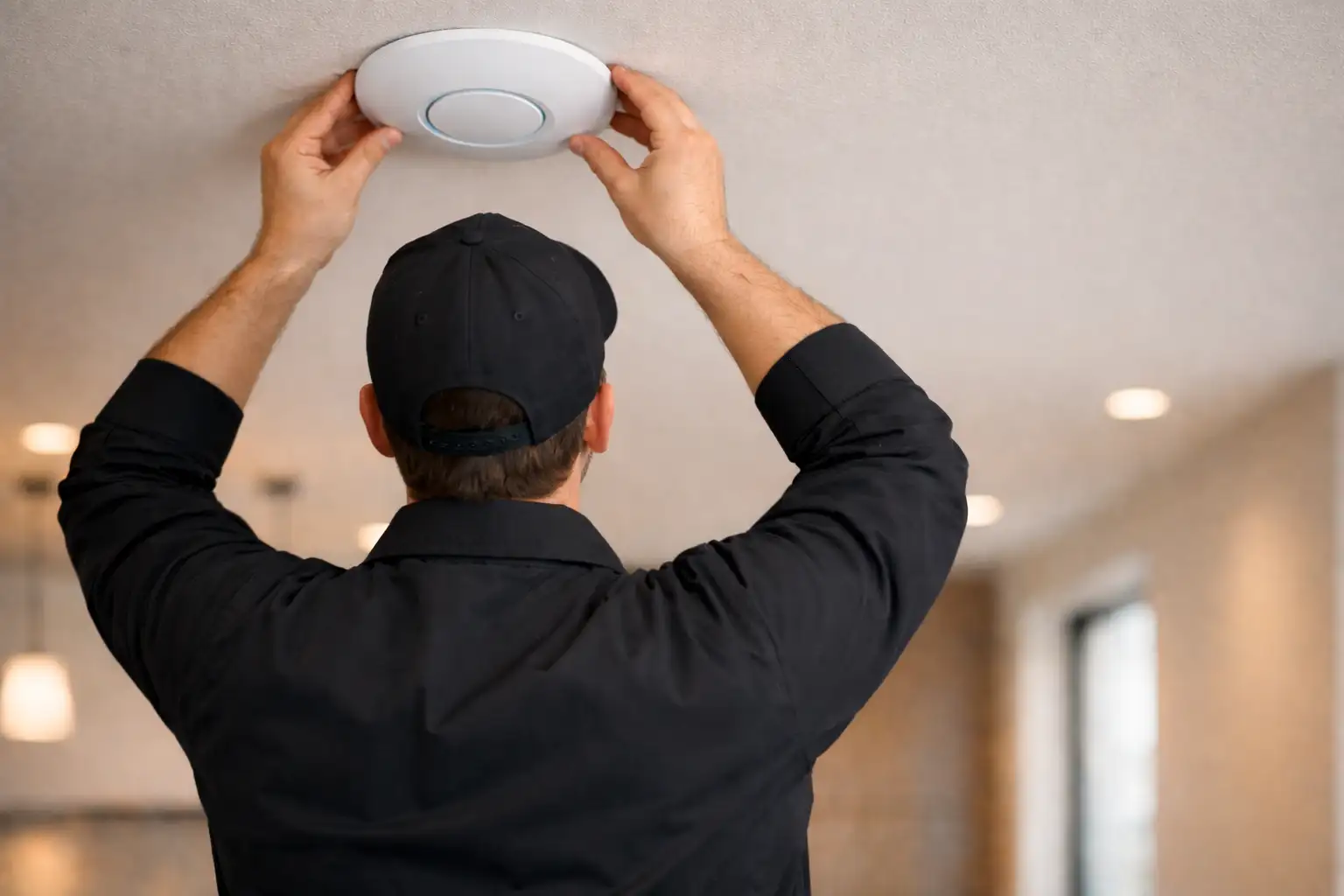
Wi-Fi Troubleshooting & Network Optimization in Aurora
Brick walls, estate footprints, and detached outbuildings demand more than a consumer mesh kit. We trace the structural cause and fix it with hardwired infrastructure — not workarounds.
5.0 ★★★★★ · 437 Google Reviews
Verified Reviews from SetupTeam Customers
What Is Actually Causing Your Wi-Fi Problem in Aurora?
A slow or unreliable wireless network in an Aurora home is rarely a speed problem — it is almost always a structural problem. Brick and stone attenuate 5 GHz signals sharply. Estate-scale footprints exceed what a single gateway can serve. Sonos and Control4 systems require multicast configuration that consumer routers do not provide by default. Diagnosing the correct cause before quoting the solution is the only approach that produces a reliable result. Our Wi-Fi troubleshooting and network optimization in Toronto hub covers the full scope of our diagnostic methodology — Aurora deployments follow the same evidence-based process.
Solid masonry walls common in Aurora Village and Aurora Highlands reduce 5 GHz signal strength by 12–15 dBm per wall. Rooms on the far side of a brick partition often fall below the usable –70 dBm threshold.
Bayview Wellington and Henderson Drive homes regularly span 3,500–5,500 sq ft across two or three floors. A single ISP gateway near the utility room cannot serve the full property at usable signal strength.
Garages, workshops, and pool houses on rural Aurora Estates properties cannot be reliably covered by indoor wireless. A dedicated Cat6 run and independent access point is the only solution that holds up.
Sonos uses multicast UDP for inter-device communication. Consumer routers either suppress or flood multicast, causing zone dropouts and grouping failures that appear as Wi-Fi problems but are actually network configuration issues.
Adding a second router behind an active Bell Home Hub creates double-NAT — two devices assigning IP addresses simultaneously. This reduces throughput, breaks VoIP, and causes smart-home dropouts. Bridge mode resolves it.
Wireless mesh nodes lose approximately 50% of throughput per hop through walls. Through Aurora’s brick construction, that loss compounds further. Wired Cat6 backhaul to each access point eliminates this penalty entirely.
Why Aurora Homes Need a Different Network Approach
Generic GTA network solutions are designed for concrete condos and semi-detached homes. Aurora’s property mix is fundamentally different — and the correct infrastructure reflects that difference.
Pre-1980 brick and stone homes in Aurora Village and Aurora Highlands attenuate 5 GHz signals aggressively. Wireless mesh nodes placed in adjacent rooms often fail to maintain –67 dBm or better. Cable routes run through attic space and interior partition walls — exterior brick is never penetrated.
Executive properties in Bayview Wellington and Aurora Highlands regularly span 4,000–5,500 sq ft across multiple floors. These footprints require three to five wired access points positioned by site survey — not an estimated count assigned before measuring.
Properties in Aurora Estates, Aurora Grove, and Cathedral Pines often include detached garages, workshops, or secondary suites requiring independent wired AP runs. The same Cat6 run that serves Wi-Fi in the garage can also support security cameras — both operate on the same infrastructure.
Bell Fibe is the dominant ISP across Aurora. Every SetupTeam deployment configures the Bell Home Hub or Smart Hub correctly — either bridge mode or DMZ passthrough — so UniFi or eero Pro handles all routing without double-NAT interference. Standard practice, not an optional add-on.
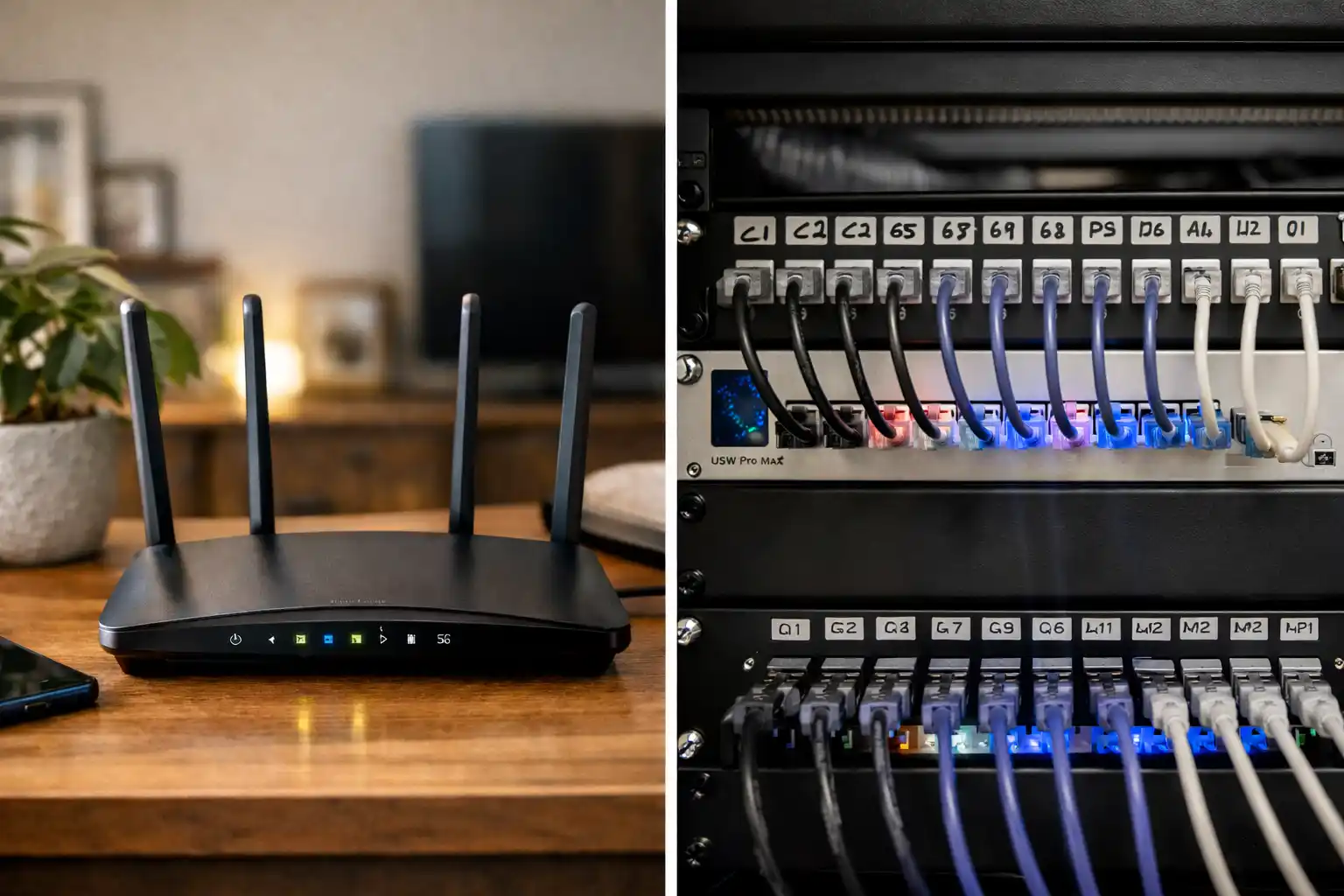
UniFi and eero Pro: Which Platform Is Right for Your Aurora Property?
Both UniFi and eero Pro deliver reliable whole-home Wi-Fi when installed correctly with wired Cat6 backhaul. The right choice depends on your property’s complexity, connected systems, and how you prefer to manage the network. We configure both — neither platform leaves an Aurora property at factory defaults.
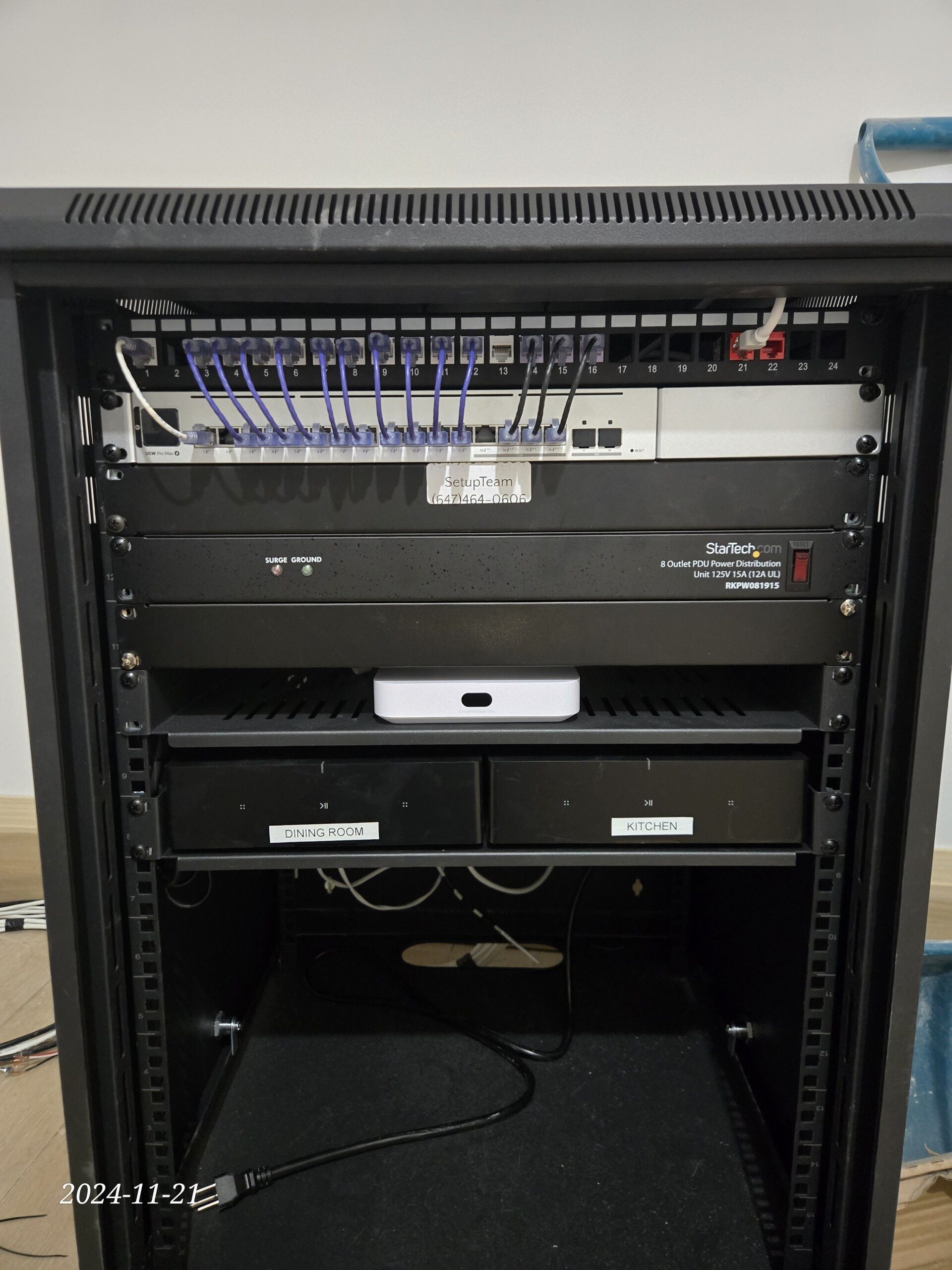
- Full VLAN segmentation — isolate IoT, AV, guest, and main networks on separate logical segments
- IGMP snooping and multicast configuration for reliable Sonos multi-room audio across zones
- Precise roaming thresholds (dBm) per AP for seamless Control4 and AV system handoff
- QoS rules prioritize video calls and AV streams over background IoT polling
- Manages 50+ devices across multiple structures without performance degradation
- Preferred platform for Control4 installation and smart home integration
- Wired backhaul via Cat6 delivers full-speed Gigabit at every node — no wireless penalty through brick
- Tri-band 802.11ax (Wi-Fi 6E) with dedicated backhaul radio keeps client performance unaffected
- Simplified management via eero app — for households without complex automation requirements
- eero Pro with correct Sonos multicast settings eliminates zone dropouts in most configurations
- Scales from 1 to 5+ nodes with consistent performance across Aurora estate footprints
- Bell Fibe passthrough configured on first visit — no double-NAT on any eero deployment
How We Fix Wi-Fi in Aurora Homes
Every Aurora network installation follows four steps in sequence. No cable is run, no access point is ordered, and no quote is produced until the site survey is complete.
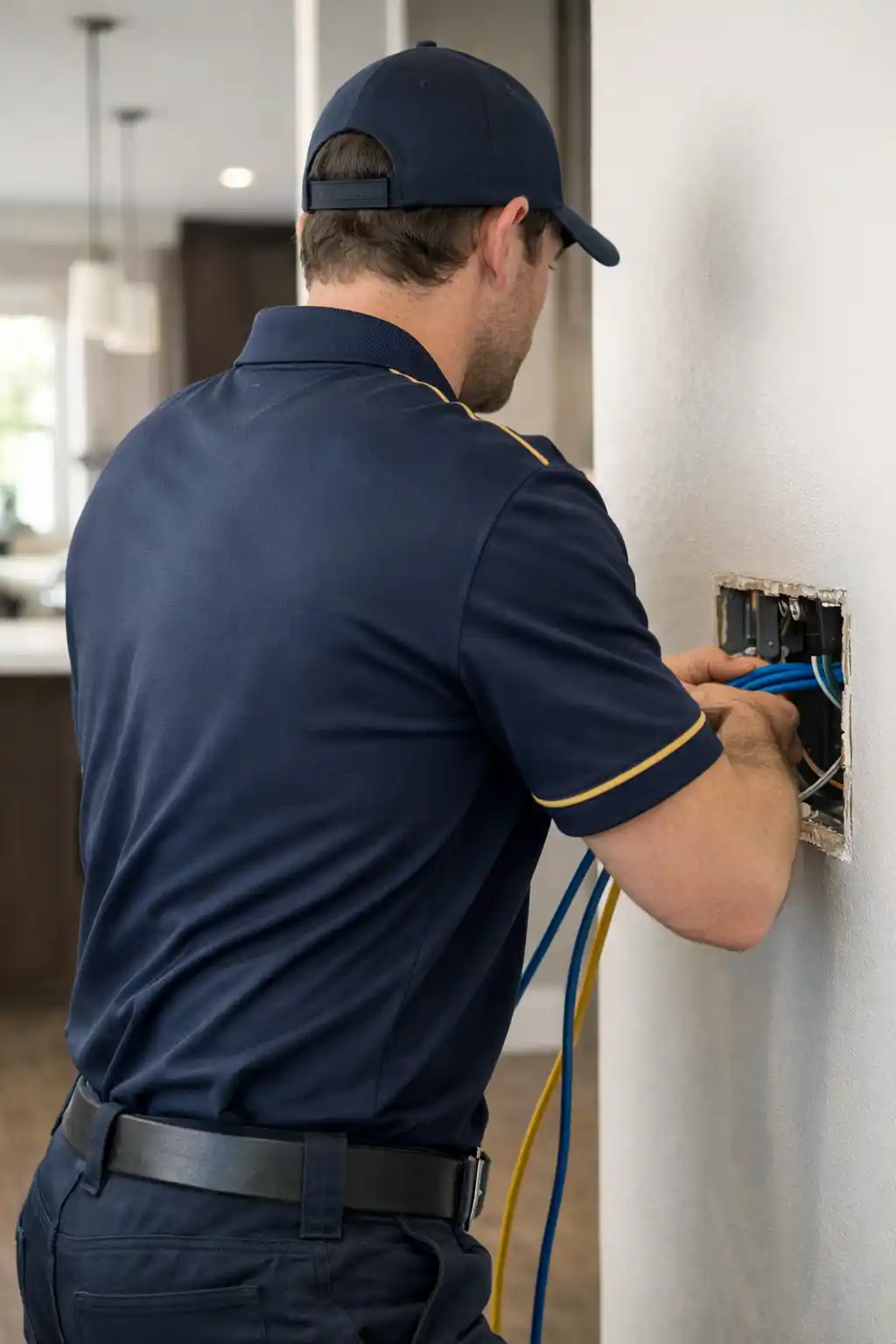
We measure signal strength (dBm) in every room, including outbuildings. Channel utilization, throughput under device load, and roaming behaviour between any existing nodes are all measured on-site. Secondary structures — garages, workshops, pool houses — are included in the survey scope.
Survey data identifies whether the problem is brick attenuation, access point placement, wireless backhaul loss, Bell Fibe gateway misconfiguration, or a combination. The cause is confirmed before any solution is proposed — this step is what separates a correct fix from a recurring one.
Cat6 is routed via attic, basement, or conduit to each access point position identified by the survey. PoE switches power remote APs without separate power outlets at each location. UniFi U7 Pro or eero Pro nodes are mounted at positions confirmed by measurement — not estimate.
Band steering, roaming thresholds, VLAN segmentation, IGMP snooping, and QoS rules are configured before we leave. Bell Fibe gateway passthrough is confirmed. Every zone — including the garage or workshop — is tested under real device load. We do not leave until every zone passes.
Start With a Site Survey — Not a Guess
Aurora’s brick heritage homes, estate footprints, and detached outbuildings each introduce variables that cannot be assessed remotely. A site survey identifies the correct fix before any equipment is ordered or cable is run.
Wi-Fi Troubleshooting in Aurora — Common Questions
Your Bell Fibe plan speed is the speed at the fibre terminal — what reaches your devices over Wi-Fi depends on signal strength, wall materials, and distance from the access point. Internet plan speed and Wi-Fi speed are not the same measurement.
In Aurora homes built with solid brick or stone, 5 GHz signals attenuate sharply. A room positioned behind two masonry walls may receive signal at –72 dBm or weaker — below the threshold where reliable throughput is possible, regardless of your Bell Fibe plan tier. A single ISP gateway placed near the utility room cannot serve 3,500+ sq ft estates at usable signal strength.
Bell Fibe also introduces a common configuration problem: when a second router is connected behind an active Bell Home Hub without bridge mode enabled, double-NAT occurs — two devices simultaneously attempting to assign IP addresses. This reduces throughput and causes smart-home device dropouts independently of signal strength.
The correct fix is wired Cat6 to strategically positioned access points — UniFi or eero Pro with wired backhaul — placed at positions confirmed by a site survey. Dead zones in Aurora homes are structural problems with structural solutions.
A wireless mesh node uses a wireless backhaul — it receives signal from the router or another node via radio and rebroadcasts it. Each wireless hop loses approximately 50% of available throughput, and that loss compounds through brick and stone walls. A wired access point receives a full-speed Cat6 Ethernet connection from the router and rebroadcasts at full speed regardless of wall material.
In Aurora brick homes, a wired access point delivers near-Gigabit speeds at every node. A wireless mesh node through masonry may drop to 150–200 Mbps or lower — enough for basic browsing but unreliable for 4K streaming, Zoom calls, and Sonos multi-zone audio simultaneously.
Wired access points are powered by PoE (Power over Ethernet) — the same Cat6 cable that carries data also delivers power, so no separate electrical outlet is required at the AP location. This makes ceiling and wall mounting clean and straightforward in Aurora homes with attic access.
UniFi Dream Machine Pro with wired U7 Pro access points is the professional standard for Aurora estates running Control4 or complex AV systems. eero Pro with wired backhaul is a strong alternative for Sonos-primary households. Both outperform any consumer wireless mesh kit when correctly installed with Cat6 infrastructure.
Yes — and Cat6 to a dedicated access point is the only solution that holds up reliably across Aurora property distances and through stone or brick exterior walls. Wireless bridge solutions fail across the distances common to Aurora rural estate properties and through masonry exterior walls.
The Cat6 run from the main patch panel to the secondary structure is terminated at a PoE access point mounted inside the garage or workshop. That access point broadcasts the same SSID as the main house network, so devices roam between them seamlessly without re-connecting.
Cable routing depends on the property: underground conduit is standard for longer runs across landscaped areas; aerial cable on a messenger wire is used where trenching is not practical. Outdoor-rated shielded Cat6 is specified for exposed runs. For rural Aurora Estates properties with longer distances between structures, we confirm the routing method during the site survey walkthrough.
The same Cat6 infrastructure that serves Wi-Fi in the garage also supports security cameras if needed. For camera-specific infrastructure, see security camera installation in Aurora.
Sonos uses multicast UDP packets for inter-device communication — speakers and controllers find each other on the local network using multicast, not standard unicast traffic. When multicast is mishandled by the router or switch, Sonos zones drop, groups fail to form, and playback stops mid-track.
Consumer routers either suppress multicast entirely (causing Sonos devices to lose each other) or allow it to flood the network without control (causing congestion that triggers the same symptom). Both conditions produce Sonos failures that appear to be Wi-Fi signal problems but are actually network configuration errors.
The correct fix involves three things: enabling IGMP snooping on the network switch to control multicast scope and prevent flooding; placing Sonos devices on a correctly configured network segment (or dedicated VLAN on UniFi) that passes multicast properly; and ensuring a wired access point is positioned in any zone where Sonos speakers are located.
SetupTeam is a Sonos Gold Dealer providing installation and support in Aurora — Sonos configuration is handled as part of the network installation. The Wi-Fi network and Sonos multi-room setup are commissioned together so the result is verified under real playback conditions before we leave.
AP count is determined by site survey — not estimated before measuring. Wall materials, floor plan complexity, ceiling height, device density, and the presence of secondary structures all affect the answer in ways that cannot be assessed without being on-site. We do not quote AP count before conducting the survey.
Common ranges for Aurora properties: 3,000–4,000 sq ft across two floors typically requires 2–3 wired APs for full coverage at –67 dBm or better throughout. 4,000–6,000 sq ft across three floors or with complex layouts — common in Bayview Wellington and Henderson Drive — typically requires 3–5 APs. Each detached structure adds one independent AP run.
UniFi allows precise dBm threshold tuning per access point, which means roaming events are triggered at the correct signal level — devices hand off between APs without noticeable interruption. This level of roaming control is not available on consumer mesh systems, where roaming thresholds are fixed at firmware defaults.
eero Pro 6E or Max 7 with wired backhaul typically requires fewer nodes than wireless mesh for equivalent coverage, because there is no throughput padding required to compensate for backhaul loss.
The correct platform depends on the home’s complexity and connected systems — not on which product is technically superior. Both UniFi and eero Pro with wired Cat6 backhaul deliver reliable, Gigabit-class Wi-Fi across Aurora estate footprints when professionally configured.
UniFi (Dream Machine Pro + U7 Pro access points) is the preferred choice when: the home runs Control4 automation requiring VLAN and multicast precision; the network includes 50+ devices across IoT, AV, and security; the homeowner wants full traffic visibility, device grouping, and QoS rule control; or the property spans multiple structures with independent network segments.
eero Pro 6E or Max 7 with wired backhaul is preferred when: the household is Sonos-primary without advanced automation requirements; the client wants straightforward management via mobile app; the scope is 1–3 floors with 2–4 AP positions and a single-structure footprint.
Both platforms require wired Cat6 backhaul in Aurora brick and stone properties for full performance. Both are professionally configured by SetupTeam — Bell Fibe bridge mode, IGMP, roaming thresholds, and QoS are set correctly on whichever platform is selected. Neither leaves the property at factory defaults.
Video call freezing is almost always a Wi-Fi quality problem, not an internet plan speed problem. Zoom requires approximately 4 Mbps sustained for 1080p HD — throughput is rarely the constraint. What causes freezing is consistent, low-latency delivery being interrupted by signal issues.
The most common causes in Aurora homes: signal quality below –67 dBm at the device location (laptop receiving weak signal in a home office behind masonry); roaming events between APs or mesh nodes causing a 1–3 second interruption while the device switches connections; and QoS misconfiguration where background IoT device traffic competes with the video call for available bandwidth.
The correct fix for a home office experiencing Zoom freeze is a wired access point positioned in or adjacent to the office — ensuring the laptop or phone always receives –55 dBm or better at the location where it is used. QoS rules on UniFi or eero Pro then prioritize video call traffic above background IoT polling. Once both are in place, Zoom freezing caused by Wi-Fi is eliminated.
A SetupTeam site survey measures everything needed to identify the correct fix and produce an accurate quote. It is the mandatory first step — no Aurora network installation is quoted before the survey is complete.
On-site measurements include: signal strength (dBm) in every room and zone, including outbuildings; channel utilization across 2.4 GHz and 5 GHz — identifying which channels are congested by neighbouring networks; throughput testing under real device load; roaming behaviour between any existing access points or mesh nodes; and physical inspection of wall construction, attic and basement access for cable routing, and distance to secondary structures.
The survey output is a clear diagnosis identifying whether the problem is masonry attenuation, access point placement, wireless backhaul loss, Bell Fibe gateway configuration, or a combination. The quote follows the diagnosis — not the other way around.
A professional survey differs from a Bell ISP technician visit, which typically verifies only that the modem or gateway is receiving the correct signal from the ISP — it does not assess whole-home wireless coverage, roaming performance, or network configuration beyond the gateway itself.
In the majority of Aurora Village and Aurora Highlands heritage properties, yes — walls are not opened. Cat6 is routed through attic space or basement service runs in most cases, entering rooms through interior partition walls, ceiling areas, or baseboard pathways. Exterior brick is never penetrated.
Interior lath-and-plaster walls common in pre-1960 Aurora Village stock are drilled at stud bays rather than opened — a clean hole is made at the top and bottom of the stud cavity to pass cable, which is then patched. The finished result is a wall-mounted access point or flush keystone plate with no visible cable.
In cases where attic access is limited — slab-on-grade sections, or finished ceilings without accessible space above — surface-mounted raceway or conduit is used. Raceway is colour-matched to trim or wall finish. The routing method is confirmed after a physical walkthrough of the property — SetupTeam does not specify cable routes before inspecting the space.
Yes. Bell Fibe is the dominant ISP across Aurora, and Bell Home Hub or Smart Hub gateway configuration is a standard part of every SetupTeam network installation — it is included, not an add-on.
In most deployments, the Bell gateway is placed in bridge mode or passthrough mode: the gateway handles fibre termination but routes nothing. UniFi Dream Machine Pro or eero Pro takes over as the router and DHCP server. This eliminates double-NAT, removes Bell’s built-in wireless radios from the equation entirely, and allows SetupTeam to control all QoS, VLAN segmentation, and routing from a single professional platform.
When a client prefers to keep the Bell gateway active — for example, to preserve Bell’s TV service on the gateway — SetupTeam configures DMZ passthrough instead, which allows the UniFi or eero system to receive a clean public IP without double-NAT interference while the Bell gateway remains operational.
Gateway replacement or full bypass is recommended only when Bell’s CGNAT configuration or specific firmware limitations prevent clean passthrough — confirmed during the site survey before any equipment is ordered.
Wi-Fi & Network Services Across York Region & the GTA
SetupTeam serves Aurora and every surrounding community within York Region and the broader GTA — same crew, same standards, no travel surcharge.