

Mesh Wi-Fi Installation in Toronto That Reaches Every Room
Strong signal in every room, video calls that hold, and no more standing in the hallway chasing a bar of Wi-Fi. We install eero Pro 6E CI or UniFi Whole Home WiFi 7 mesh systems, tuned for your home, from $1,000 + HST.
Your Whole Home Gets Wi-Fi That Actually Works
SetupTeam supplies and installs mesh Wi-Fi across Toronto and the GTA. Choose eero Pro 6E CI (two access points $1,000, three $1,300) or UniFi Whole Home WiFi 7 (2-pack from $1,200, 3-pack from $1,500, depending on your network), prices before HST. Each bundle includes one year of remote support and RMA handling, and we also install mesh systems you already own, from $400 + HST.
A slow connection in the primary bedroom or a dropped call in the home office is a placement problem, not a router problem. We measure your home's construction, place each access point where it earns its keep, and configure the system to hand devices off between nodes without a hiccup.
You get one network with no dead zones, not a patchwork of extenders and guesswork. Every install is verified under real conditions before we leave: multiple video calls, several devices streaming, and a full household online at once.
No Dead Zones
Every room gets a strong signal, from the basement gym to the third-floor office. Coverage is planned around your walls and floors, not a generic router placement.
Video Calls That Hold
Roaming between access points is tuned so your laptop keeps a stable connection as you move through the house, mid-call.
One Network, Every Device
Phones, laptops, smart TVs, and connected appliances share one fast, properly configured network instead of competing for a single router's range.
Support After We Leave
Both bundles include a year of complimentary remote care and warranty (RMA) handling, so someone stands behind the system long after installation day.
Which Mesh System Fits Your Home: eero or UniFi?
eero Pro 6E CI suits homeowners who want strong Wi-Fi that runs itself, with almost nothing to manage. UniFi Whole Home WiFi 7 (UniFi Express 7) suits homeowners who want the newest Wi-Fi 7 speed, more control over their network, and room to add cameras or outdoor coverage down the road. UniFi also runs proper, secure networking with multiple VLANs (separate networks for family, guests and smart devices), even when every access point connects wirelessly.
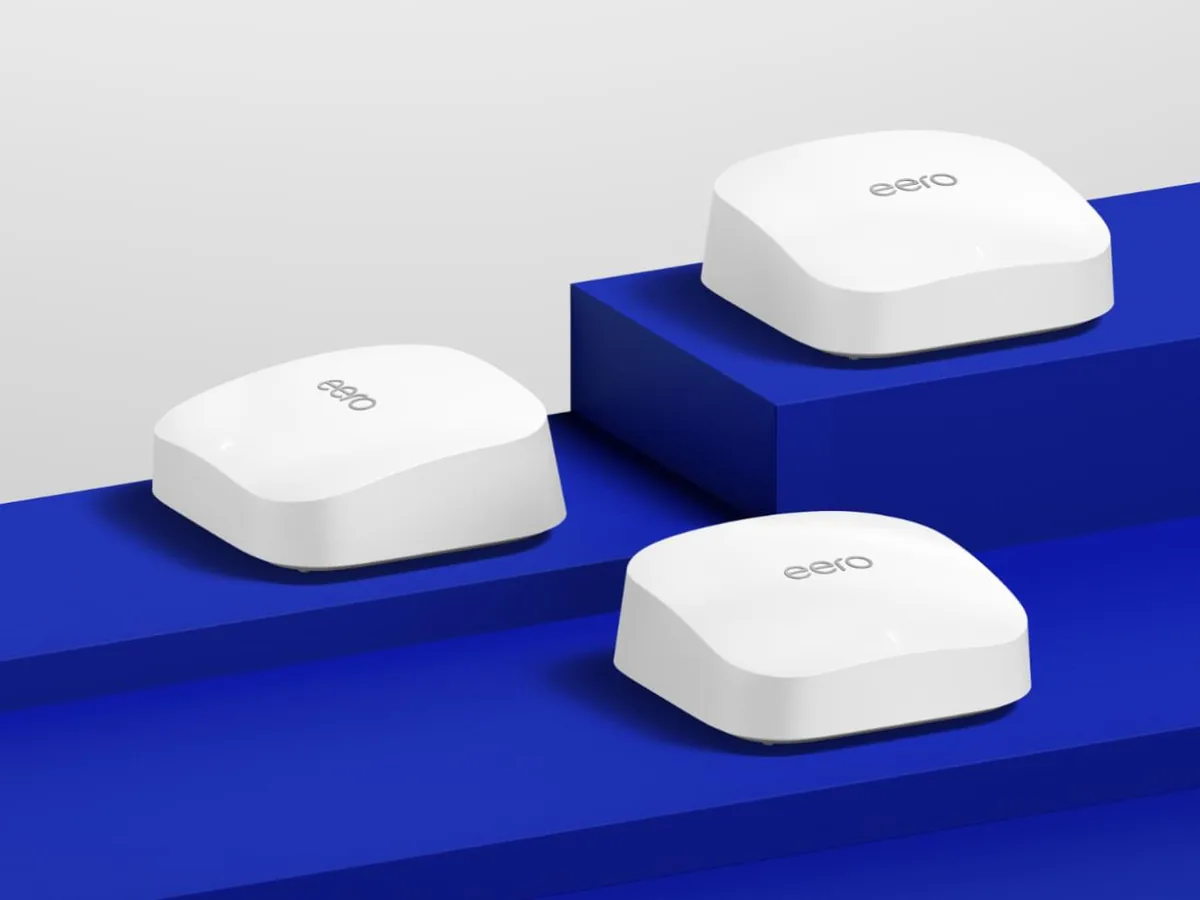
eero Pro 6E CI
- Wi-Fi 6E performance built for streaming, video calls, and a full house of connected devices
- The Custom Installer model, eero's professional-grade version sold through installers like SetupTeam, not the retail unit
- Real people on the phone: eero, an Amazon company, runs a dedicated tech support line you can call, and SetupTeam backs it up
- Monitored remotely through eero Insight, so problems are often spotted before you notice them
- Backed by a full year of free remote monitoring, alerts, and tuning
- 2 access points, installed$1,000+ HST
- 3 access points, installed$1,300+ HST
- Each extra access point$300+ HST
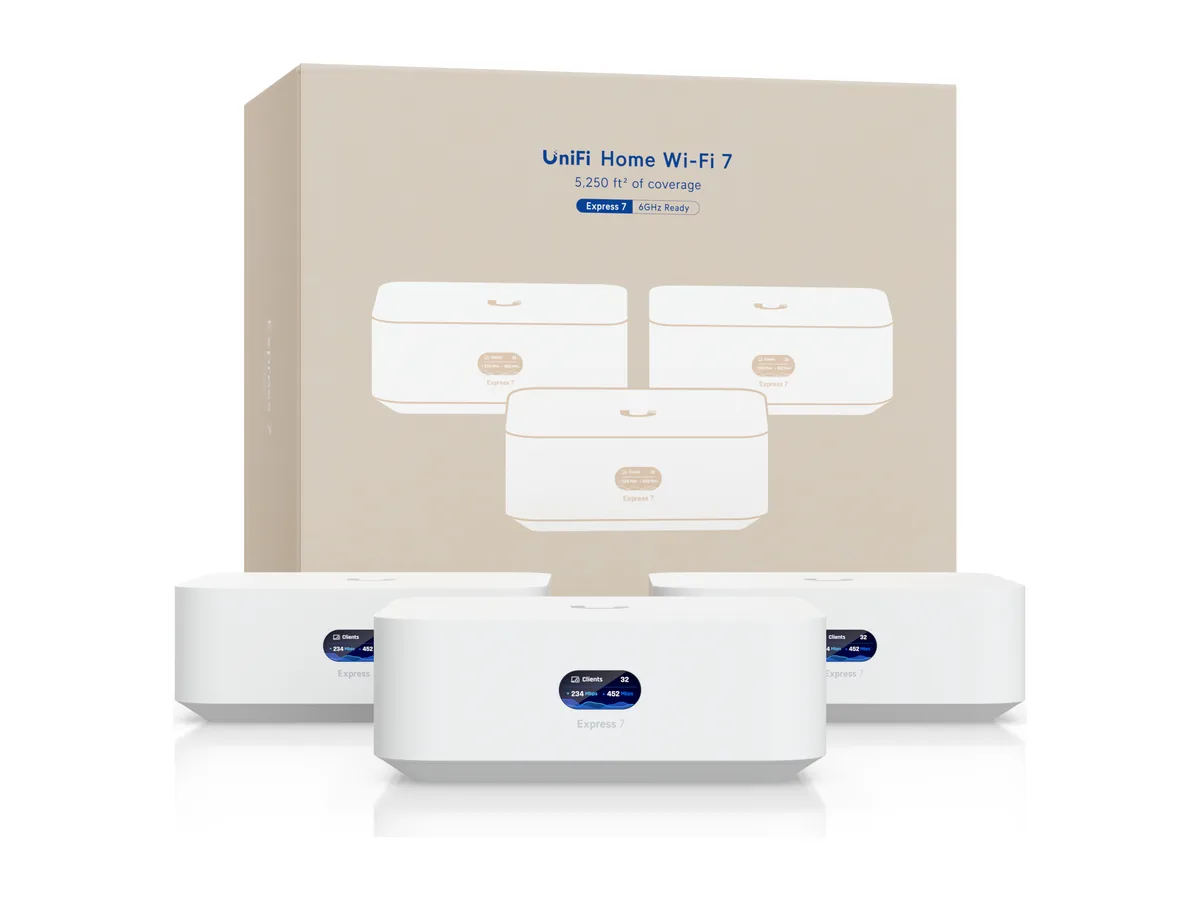
UniFi Whole Home WiFi 7
- The newest Wi-Fi 7 standard, built for faster speeds and more connected devices at once
- Added to SetupTeam's UniFi controller, so we can look after it for you
- Room to grow later, with cameras or outdoor coverage
- Secure, separate networks (multiple VLANs) for family, guests and smart devices, even with no wires between access points
- Works with a UniFi system you already own: extend a hardwired UniFi network into the rooms it doesn't reach
- One year of complimentary remote care, with remote access as your choice
- 2-pack, installedfrom$1,200+ HST
- 3-pack, installedfrom$1,500+ HST
- Each extra access point$400+ HST
Planning cameras or door access as well? Our UniFi installation service covers those systems too.
Already bought a mesh system?
We gladly install mesh systems you've already purchased. Installation starts at $400 + HST, with the same careful placement, setup and testing under real use.
How many access points does your home need?
Our rule of thumb from installing mesh systems across the GTA. The in-home assessment confirms the count before you commit.
| Your home | What we usually recommend |
|---|---|
| Under 2,000 sq. ft., with the modem in the basement | 2 access points |
| Over 2,000 to 2,500 sq. ft., several floors, a wide single-storey footprint or a large backyard | 3 access points |
| Larger homes | A 3-pack plus extra access points: $300 + HST each for eero, $400 + HST each for UniFi |
For reference, eero rates an eero Pro 6E 3-pack at up to 6,000 sq. ft., and Ubiquiti rates each UniFi Express 7 at 1,750 sq. ft. Walls, floors and layout decide the real number.
- Brick, concrete or plaster walls: walls cut range, so plan on three access points and let the in-home assessment confirm it.
- Already have UniFi, but it isn't reaching everywhere: UniFi Whole Home WiFi 7. The new units join your existing UniFi system and mesh with your current access points, so the rooms your wired setup misses get covered without opening walls.
- Planning cameras or outdoor Wi-Fi later: UniFi Whole Home WiFi 7 gives you the most room to grow.
If your home is larger than a mesh bundle is built for, or you want access points wired into the walls, our Wi-Fi installation and optimization service covers that scope.
Do You Need Network Cables in the Walls?
No. These bundles are designed for homes with no network cables: the access points talk to each other wirelessly. If your home already has network cables, we use them as a wired backhaul, which gives the steadiest connection of all.
When cables are already in place, the installation also includes:
- Tracing the cables that matter for your system, so each access point connects to the right run.
- Testing and terminating each of those cables, so every one works before the system goes live.
How do the access points stay connected to each other?
The link between access points decides how steady your Wi-Fi feels in the far rooms. Here is how the options compare, from most to least reliable.
| Connection between access points | What it means for you |
|---|---|
| Wired backhaul (existing network cables) | The cable carries traffic between units, so all of the Wi-Fi is free for your devices. The most consistent speed in every room. |
| UniFi Wi-Fi 7 multi-link | Units can link over more than one band at the same time. If one gets busy or hit by interference, the connection carries on. The most reliable wireless option. |
| eero Pro 6E tri-band | A separate band is set aside for the units to talk to each other, so your devices and the link between units don't compete. |
| Entry-level dual-band kits, such as many TP-Link Deco models | The same radios carry your devices and the link between units, so speed drops with each hop, especially in rooms far from the modem. |
What Does a Professional Mesh Wi-Fi Installation Include?
Installation means we plan, place, configure, and verify the system on-site rather than dropping units at outlets and hoping for the best. A full installation is usually a half-day to full-day job for a standard home, and the visit isn't finished until the network is tested under real use.
On-Site Signal Check
We measure existing coverage and interference before touching any hardware.
Placement Planned Around Your Home
Access point locations are chosen for your home's construction and layout, not a generic diagram.
Setup and Remote Care Link
Each unit is set up on your network, then connected to eero Insight or our UniFi controller so first-year care starts on day one.
Configuration and Tuning for Roaming
The network is configured so devices hand off between access points without dropping.
Verification Under Real Load
We test the network under streaming, video calls, and multiple devices at once before calling the job done.
Upstream Check
We check for modem or cabling issues from your internet provider that could limit performance, since the system connects to the internet service you already have.
What Does the First Year of Support Include?
Both bundles include a full year of remote care and warranty handling at no extra cost. The exact tools differ by brand, but the goal is the same: your network stays healthy after installation day, without you having to notice a problem first.
With eero Pro 6E CI, we connect through eero Insight, eero's installer platform, to monitor the network, get alerted to issues, and push updates and professional-grade tuning remotely. All of it is complimentary for the first year. You also have two lines of help. eero's own support team, backed by Amazon, takes your call and troubleshoots with you. And because the CI model gives us installer access, SetupTeam can look into the same problem from our side.
With UniFi Whole Home WiFi 7, your system is added to SetupTeam's UniFi controller. If you choose to allow remote access, we can handle updates, network fixes, upgrades, and new-feature setup without scheduling a visit. That access is entirely your choice.
Both bundles also come with a free first year of Essential Care, our $250-a-year technology support plan: priority phone, text and email support during business hours, quarterly software and firmware update reviews, remote troubleshooting guidance and preferred access to the first available appointment. After the first year, you can continue on a paid annual or monthly plan if you wish.
For both systems, SetupTeam handles warranty replacement with the manufacturer directly if a unit fails (RMA handling), so you're not the one on hold with a manufacturer support line. A remotely managed network catches slowdowns and outages early, often before you'd notice them yourself.
What Does Remote Monitoring Show After Your Mesh Is Installed?
It shows us what is actually failing. Once your eero or UniFi system is linked to eero Insight or our UniFi controller, we can see when a mesh node has a weak signal, when devices keep dropping off, and when the internet connection itself goes down. That tells us whether the problem is inside your home or with your provider.
What we install is the network inside your home, built to be reliable from the point where your internet arrives. The internet connection itself, including its speed and stability, comes from your internet provider and stays their responsibility. We can’t change it, but we can show you when it is the part that’s failing.
Every internet outage is logged with the date and how long it lasted, so you have a record to share with your provider if their line test says everything is fine. See what an outage log showed in an Etobicoke home with daily fibre drops.

How Do eero Pro 6E CI and UniFi Whole Home WiFi 7 Compare?
Both systems deliver strong whole-home coverage; the difference is generation, control, and where each one fits best. This table summarizes the sourced specs side by side.
| eero Pro 6E CI | UniFi Whole Home WiFi 7 | |
|---|---|---|
| Wi-Fi generation | Wi-Fi 6E | Wi-Fi 7 |
| Official coverage | Up to 6,000 sq. ft. (3-pack, per eero) | 1,750 sq. ft. per unit; 5,250 sq. ft. for the 3-pack (per Ubiquiti) |
| Best for | Simple, set-and-forget Wi-Fi | More control, room to expand |
| Remote care, year 1 | Free, via eero Insight | Free, via UniFi controller; remote access optional |
| Expandability | Add more eero units | Add access points, cameras or outdoor coverage |
| Separate secure networks (VLANs) over wireless mesh | Guest network | Yes, multiple VLANs |
| Works with an existing UniFi system | No | Yes, meshes with existing UniFi access points |
| Phone support | eero support (Amazon-backed) plus SetupTeam | SetupTeam, via our UniFi controller |
| Price, 2 access points | $1,000 + HST | From $1,200 + HST |
| Price, 3 access points | $1,300 + HST | From $1,500 + HST |
How do they compare with TP-Link Deco and Netgear Orbi?
Here are the two systems we sell next to two popular retail mesh kits. Coverage figures are each manufacturer's own rating for a 3-pack, not a measurement in your home.
| eero Pro 6E CI | UniFi Whole Home WiFi 7 | TP-Link Deco X55 | Netgear Orbi RBK763S | |
|---|---|---|---|---|
| Wi-Fi generation | Wi-Fi 6E | Wi-Fi 7 | Wi-Fi 6 | Wi-Fi 6 |
| How the units talk to each other | Tri-band, with a band set aside for the link | Wi-Fi 7 multi-link over more than one band | Dual-band: shares radios with your devices | Tri-band, with a dedicated link |
| Uses existing network cables | Yes | Yes | Yes (optional) | Yes |
| Manufacturer coverage, 3-pack | Up to 6,000 sq. ft. | 5,250 sq. ft. | Up to 6,500 sq. ft. | 7,500 sq. ft. |
| Remote care by a professional | Yes: SetupTeam monitors it through eero Insight, free for year one | Yes: on SetupTeam's UniFi controller, free for year one (remote access optional) | No installer tool published | No installer tool published for this model |
| Separate secure networks (multiple VLANs) | Guest network | Yes | Guest network | Guest network |
| With SetupTeam | Installed bundle, from $1,000 + HST | Installed bundle, from $1,200 + HST | Installation only, from $400 + HST | Installation only, from $400 + HST |
Retail kits like Deco and Orbi can work well, and we gladly install them. The difference with our two bundles is what happens after installation day: a professional can see the system, update it and fix it remotely.
For a closer look at the UniFi Express 7 hardware itself, read our UniFi Express 7 3-pack mesh Wi-Fi article.
What Do Homeowners Ask About Mesh Wi-Fi Installation?
Ready for Wi-Fi That Covers Every Corner of Your Home?
Tell us about your home and we'll recommend the right system and access point count, then handle the installation from start to finish.

