

Your UniFi Quick Guide
For the system we just installed. Start with the first 10 minutes, then jump straight to the task you need: Wi-Fi, cameras, alerts, family access or a quick fix.
Your first 10 minutes
Do this once, on the phone you use most. Updated October 2026 for the UniFi app version 11 and the UniFi Protect app version 3.14 on iPhone (3.9 on Android). Ubiquiti redesigned the UniFi app in version 11, so if a button is not exactly where we say, look under Settings.
UniFi
Your internet, Wi-Fi and network equipment.
- Wi-Fi names and passwords
- Everything connected to your network
- Speed tests and equipment status
UniFi Protect
Your cameras, doorbell and recordings.
- Live view and playback
- Alerts on your phone
- Saving and sending clips
WiFiman (optional)
Ubiquiti’s free testing app.
- Speed test from your phone
- Wi-Fi signal room by room
- Teleport remote access, if we set it up
Install UniFi and UniFi Protect. Both are free from Ubiquiti Inc. in the App Store and Google Play.
Sign in to both with your UI account. That is the email address we set your system up with. Forgot the password? Tap Forgot Password and Ubiquiti emails you a reset link.
Approve the sign-in. Use the code Ubiquiti emails you, an authenticator app, or one tap in Ubiquiti’s UI Verify app.
Add a second way to sign in. In your UI account’s Security section, keep email and add UI Verify or an authenticator app. Ubiquiti cannot reset two-step sign-in for you.
Open your home. Tap your console in the list. You should now see your home in both apps without signing in again.
What “everything is fine” looks like
- In UniFi, open Devices: every item has a green dot
- In UniFi Protect, the Dashboard shows a live picture from every camera
- Access point lights are steady blue, or off if we switched them off for you
- The gateway’s small front screen is lit and showing its status
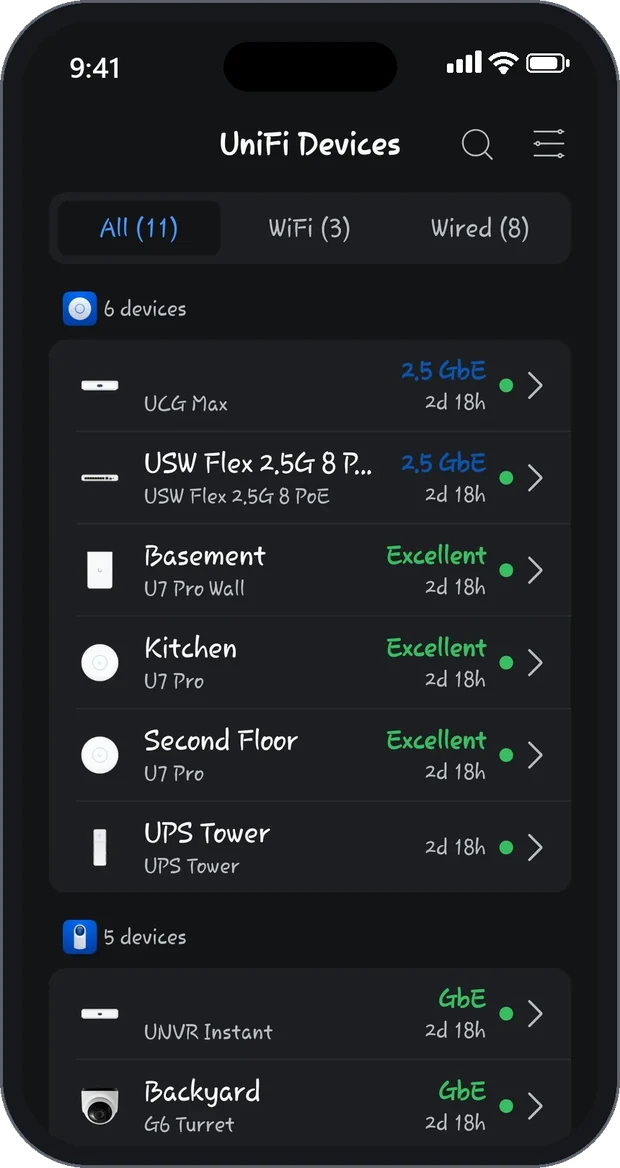
Leave these alone. Never hold the reset button on any UniFi device, and never tap Forget or Unmanage on a device in the apps: each one erases that device’s setup. Call us before moving or unplugging equipment.
What do you need to do?
Tap a task to jump to it. Each one is a few short steps.
Wi-Fi and internet
- Find or change a Wi-Fi password
- Share Wi-Fi with a guest
- See what is on your network
- Block a device
- Test your internet speed
- Restart, find or dim an access point
Cameras and doorbell
- Watch your cameras live
- Find a moment on a camera
- Save and send a clip
- Turn alerts on or off
- Answer the doorbell
- How long recordings last
Family, phones and sign-in
When something is wrong
Wi-Fi and internet tasks
These are all in the UniFi app. Open it and tap your home first.
Find or change a Wi-Fi password
Tap Settings, then WiFi. You see a list of your Wi-Fi networks.
Tap the network. Your main network and the guest network are listed separately. The password is in its settings.
To change it, type a new password and save. It needs at least 8 characters.
Changing the main password disconnects everything on it. Every phone, TV, speaker and smart device drops off until it is given the new password. With a lot of smart home devices, call us first and we will plan it.
Share Wi-Fi with a guest
Give visitors the guest network, not your main password. Set up properly, a guest network gets them online without reaching your cameras, computers or each other.
Tap Settings, then WiFi, then your guest network.
Read out or text the guest network name and password.
After the visit, change the guest password if you like. Your own devices stay connected, because they use the main network.
No guest network yet, or not sure it is kept apart from your devices? Ask us to add or check it. We can also cap the speed guests get. For the reasons behind it, see our guide to keeping smart home devices apart from your computers.
See what is on your network
Open the list of connected devices. It shows every phone, TV, speaker and smart device using your network.
Tap a device. You see which access point it is connected to and how strong its Wi-Fi signal is.
Check the signal number. Above −60 dBm is excellent, −60 to −70 is fine, and below −80 the device is likely to drop off.
Block a device
For a device you do not recognise, or one that should not be online.
Find it in the list of connected devices and tap it.
Choose Block. Not sure what a device is? Call us before blocking it. To let a blocked device back on, call us.
For children’s devices there are gentler options: a content filter with Safe Search and its own schedule, or a separate Wi-Fi network that switches off at set hours. Ask us and we will set them up with you.
Test your internet speed
At the gateway: in the UniFi app, open your internet connection’s details and run the speed test. This shows what your provider is delivering to the house.
On your phone: in WiFiman, open the Speed tab, standing in the room that feels slow.
What the results mean: gateway fast but phone slow points to Wi-Fi in that room, so call us. Both slow points to your provider, so call them first.
Restart, find or dim an access point
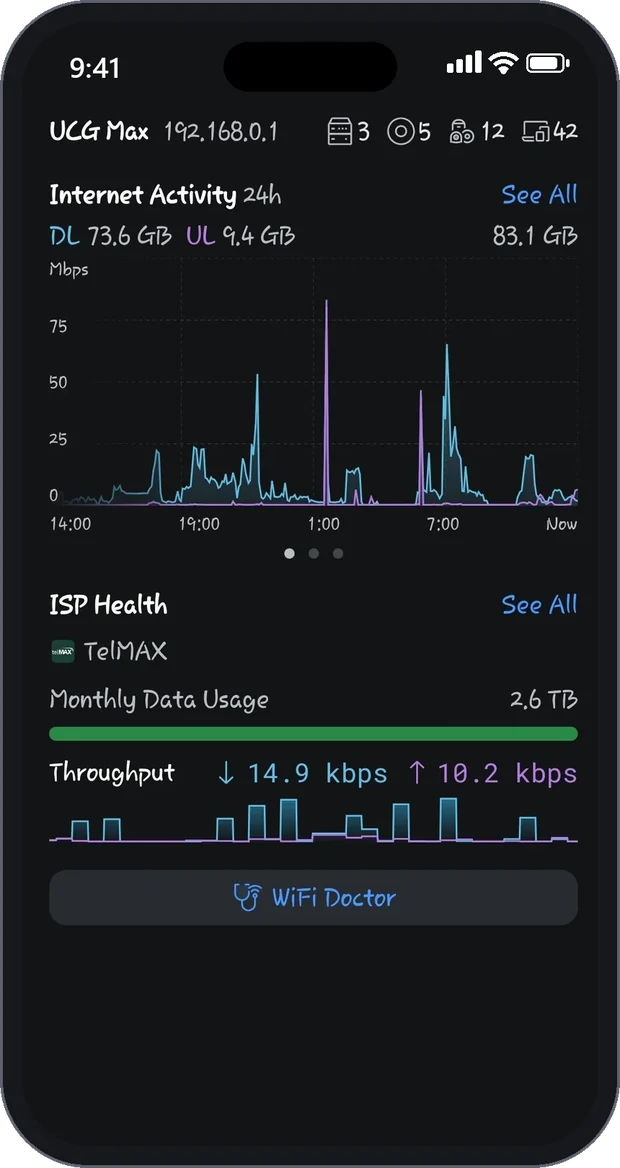
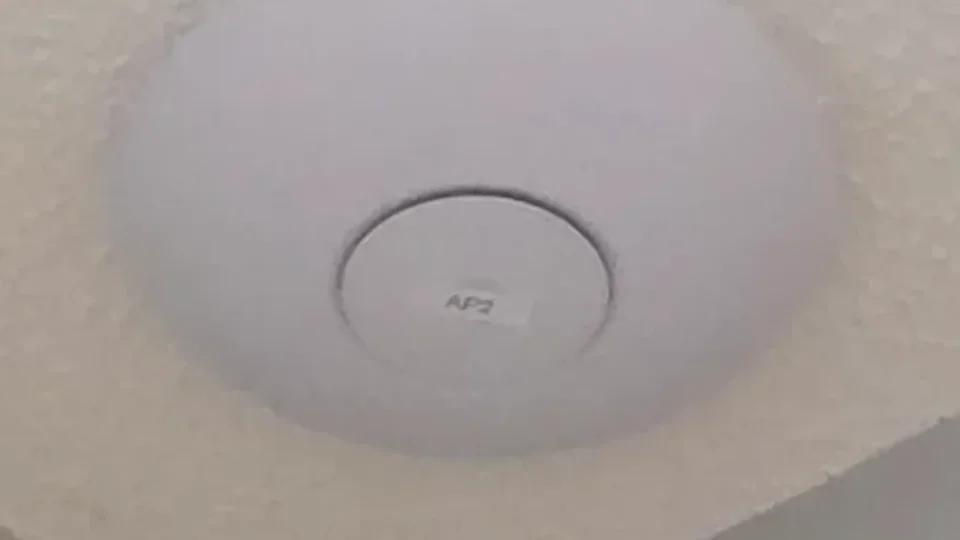
Open Devices and tap the access point. Access points are named after their room, and where we put a label on the ceiling, it matches the name in the app.
- Restart: look for Restart in its menu. The light flashes white while it starts, then turns steady blue. Never tap Forget, which sits nearby.
- Find it: look for Locate in the same menu. Its light flashes blue quickly so you can spot it.
- Dim it: open its settings and change the LED setting. Handy in a bedroom; it keeps working the same.
Camera and doorbell tasks
These are all in the UniFi Protect app. Your video records to a drive in your home, not to a cloud service, and there is no subscription.
Watch your cameras live
Open UniFi Protect. The Dashboard shows your cameras live.
Tap a camera. It opens larger, with its timeline of recordings.
To talk through a camera with a speaker, tap the microphone button and speak. Cameras without a speaker still record sound.
Find a moment on a camera
Open the camera.
Drag the timeline back to the time you want. Detections such as people and vehicles are marked along it.
Not sure of the time? Open Detections to scroll through recent events, or Find Anything to search and filter them.
Save and send a clip
Find the moment on the camera’s timeline.
Tap the Share icon and choose Export clip. On iPhone you can also use Download Selected Clip in the timeline’s export menu, or press and hold an event thumbnail.
Send the saved video like any other. By text, by email or through your insurer’s upload page.
Need it for the police or your insurer? Export it soon, because older footage does not stay on the drive forever. On a computer, select the clip in Playback or Find Anything and click the Download icon. Our article on getting usable video evidence from UniFi Protect covers the rest.
Turn alerts on or off
Camera alerts are alarms in Protect’s Alarm Manager. Each one is a trigger, the cameras it watches, and who gets told.
Open Alarm Manager and tap Create Alarm.
Pick a trigger, such as a person, a vehicle or a doorbell ring.
Choose when: Always, a custom schedule, or Location Based to hear only when you are away. If Location Based is missing, ask us to switch on geofencing.
Choose the cameras. A few specific cameras give far fewer false alarms than All.
Set the action to Notify, pick the people, then tap Create.
To switch your own alerts off or on, open Alarm Manager and use My Notifications to turn push or email on or off for yourself. Nobody else’s alerts change.
Not getting any? Check that your phone allows notifications from UniFi Protect; on iPhone the app shows a reminder with a shortcut when they are off. Away-only alerts also need the app’s location access set to Always (iPhone, with Precise Location on) or Allow all the time (Android), and your phone chosen under Settings, Primary Device in the Protect app. Low Power Mode and battery savers can delay them.
Answer the doorbell
A ring shows up as an event in Protect, and you can turn it into an alert in Alarm Manager with the doorbell ring trigger. To talk to the visitor, open the doorbell and tap the microphone button.
Leave the doorbell’s Internal Relay Chime setting as we set it. Ubiquiti warns that choosing the wrong option for your wiring can permanently damage the doorbell.
How long recordings last
Recordings are kept on the drive in your gateway or recorder, at home. How many days you get depends on the drive size, the number of cameras, their resolution, and whether each camera records all the time or only on detections. Protect manages the space for you. Ask us for your system’s figure, or about adding storage.
- Export anything you want to keep: footage does not stay on the drive forever
- Ubiquiti says it cannot see your video, and there is no cloud copy unless you set one up
- If Enhanced Retention is on, older footage drops to low quality and cannot be restored
Family, phones and sign-in
Everyone signs in with their own UI account. Never share yours.
Give a family member access
They create a UI account at account.ui.com, with their own email address.
On a computer, sign in at unifi.ui.com. This is Ubiquiti’s Site Manager. Open People and choose New Admin.
Pick your home and set permissions for each app. Someone who only needs the cameras can have Protect and nothing else.
Save. They sign in to the apps with their own account and their own two-step sign-in.
Give the least access that works: Ubiquiti treats a Super Admin as equal to the owner for security. Prefer that we do it? Call us and we will send the invitation.
Use the apps away from home
Nothing to set up. Remote management was switched on when we installed your system, so both apps reach your home from anywhere through Site Manager. At home they switch to a faster direct connection by themselves. Your home internet has to be working for this.
Teleport is different: it puts your phone on your home network from anywhere, through WiFiman. You never need it to watch cameras. An invitation must be accepted within 24 hours and works on one device at a time.
Set up a new phone
Before you wipe or trade in the old phone, check you can sign in another way. UI Verify and authenticator apps live on one phone, so make sure email is still one of your methods.
Install UniFi and UniFi Protect on the new phone, plus UI Verify if you use it.
Sign in and approve the sign-in.
If you use away-only alerts, choose the new phone under Settings, Primary Device in the Protect app.
Keep your sign-in safe
Ubiquiti cannot reset two-step sign-in. It has been required on every UI account since July 2024. If every method is lost, the only way back is a new account, and an owner who loses access may need the whole system reset and set up again. Keep two methods, such as UI Verify plus email, and store any recovery codes with your home papers.
When the internet is down
The internet comes in through your provider’s modem, then passes through the UniFi equipment. Most outages start at the provider, so restart only their modem.
Check it is everything, not one device. Try a second phone or computer. Only one device affected? Go to Fix a problem.
Unplug your provider’s modem for 30 seconds, plug it back in and give it five minutes.
Still down? Check your provider. Look for an outage on their website or app using mobile data, or call them.
Provider says all is fine? Call us. We will find out where it stops.
While it is down: your cameras keep recording to the drive at home. At home, the UniFi app can still find your system on your own network. You cannot watch the cameras from away, and alerts will not reach you until the internet is back.
Fix a problem
Tap what you are seeing. Each one says what to check, and when to call us.
Check: turn that device’s Wi-Fi off and on. In the UniFi app, look at its signal in the list of connected devices: below −80 dBm it is likely to drop. WiFiman’s Signal tab shows the signal as you walk around.
Call us if one room stays weak. A better position or another access point is the usual fix.
Check: is its light on? Compare it with what the lights mean. Make sure its cable is pushed in at both ends and the switch it plugs into has power.
Call us with the device name and what its light is doing. A damaged cable or switch port is a common cause.
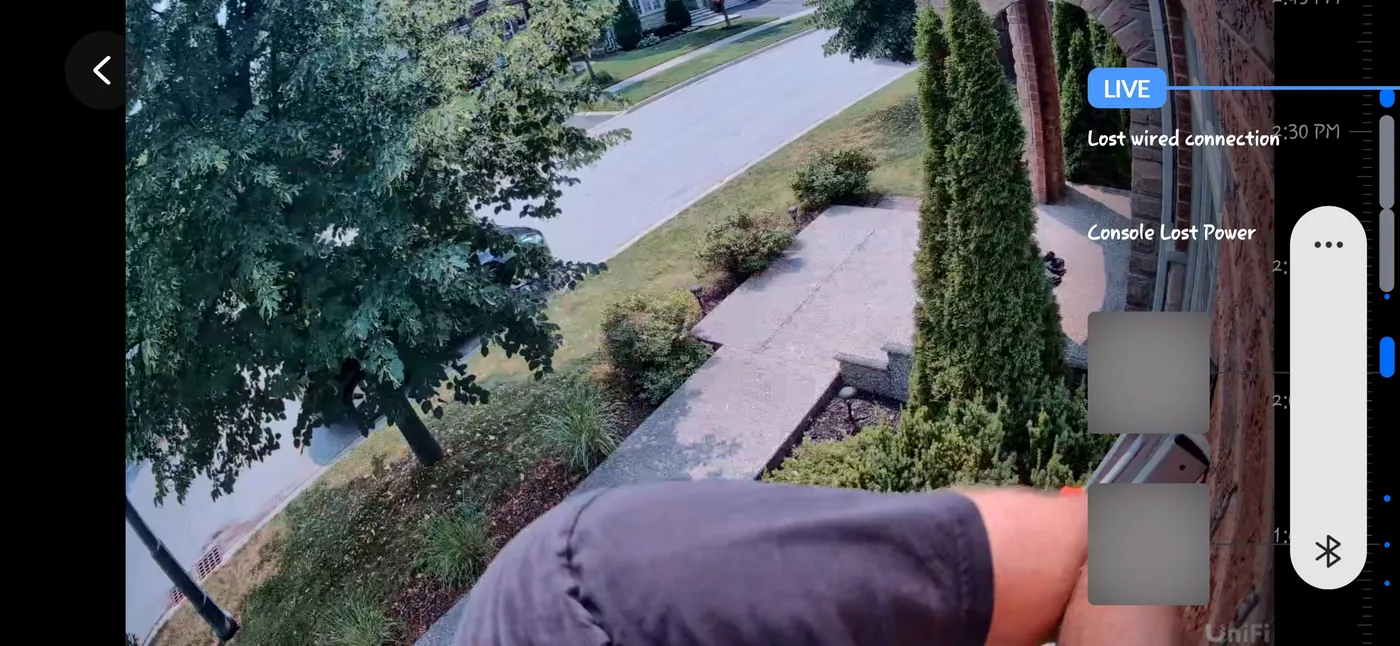
Check: open the camera in Protect and look at its timeline. Events such as a lost wired connection or a power cut at the console are marked where the gap starts.
Call us if the camera stays offline or Protect warns you about a drive.
Check: your phone still allows notifications from UniFi Protect, and push is on for you under My Notifications in Alarm Manager. For away-only alerts, check location access and Primary Device, and turn off Low Power Mode or battery saving for the app.
Call us if they still do not come through, or arrive far too often.
Check: the password first. Some older smart devices cannot use the newer Wi-Fi security that UniFi uses by default.
Call us rather than changing your main network. The fix is usually a separate network just for those devices.
Check: wrong password? Tap Forgot Password and Ubiquiti emails a reset link. No reset email? Check you are using the email address the system was set up with.
Call us before trying anything else if you have lost your two-step sign-in methods.
Check: give it a few minutes once the power is back. Lights flash white while devices start up, then turn steady blue. Do not unplug anything that is flashing white and blue quickly: it is updating.
Call us if anything is still offline after 15 minutes. A battery backup (UPS) for the rack prevents most power-cut problems, and we can add one.
What the lights mean
On UniFi access points and switches. The Cloud Gateway Max and Cloud Gateway Fiber have a small status screen instead, and the Dream Machine Special Edition has a small touchscreen.
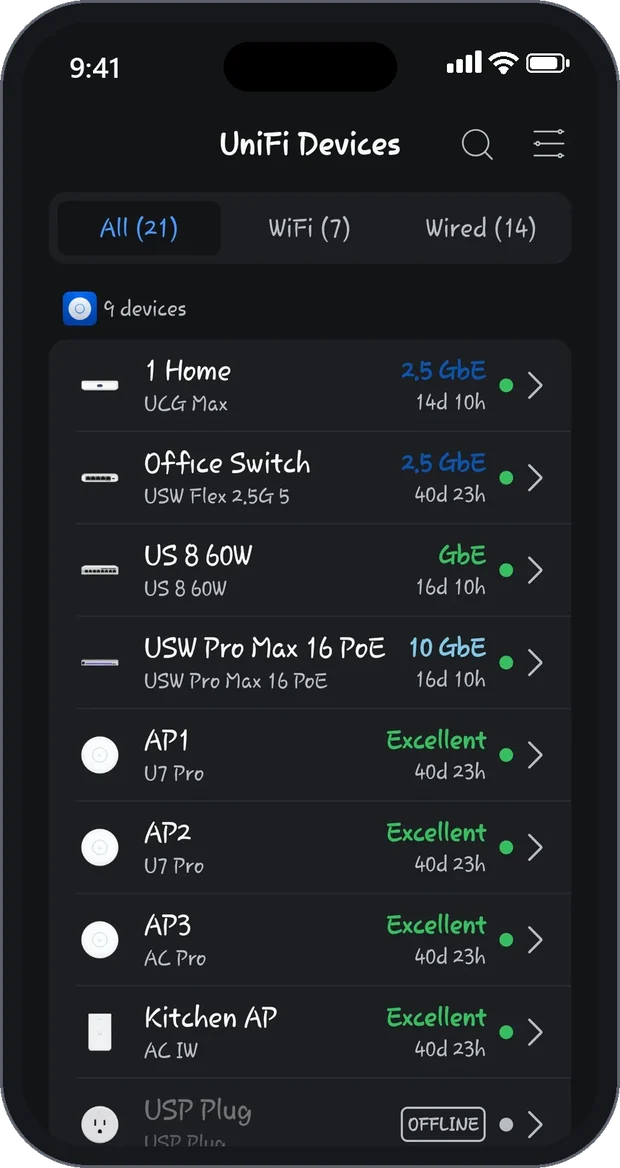
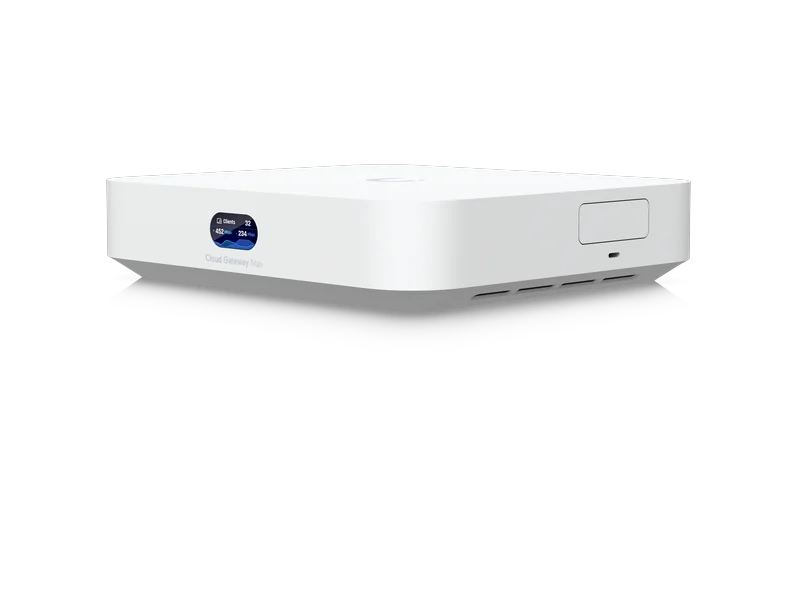
Keep these switched on
Your console saves its settings to the owner’s UI account every week and before each major update, as long as System Backups is on. That backup covers settings, not video. Automatic updates keep the equipment current.
- Automatic updates
- System Backups
- Remote management, so we can help from here
- Two ways to sign in to your UI account
Who to call
Call SetupTeam at (647) 464-0606, any day from 8:30 AM to 9 PM. You can also email [email protected], or simply reply to the text we sent you after your install. With remote management on, we can often check your system without a visit.
Our UniFi troubleshooting page explains how remote and on-site help work, and our technology support plans cover ongoing care.
- A device or camera that keeps going offline
- Weak Wi-Fi in part of the house
- Lost two-step sign-in
- Alerts that are too many, or missing
- Adding a camera, an access point or a battery backup
UniFi app questions
Questions about your UniFi system?
Call us, reply to our text, or send a message and we will get back to you.

