

How to Set Up UniFi VLANs and Firewall Rules for Smart Homes
A plain-language overview of how a UniFi home network should be split up: which networks to create, what each one may reach, the firewall rules that enforce it, and the Wi-Fi settings that keep smart TVs, speakers and plugs connected.
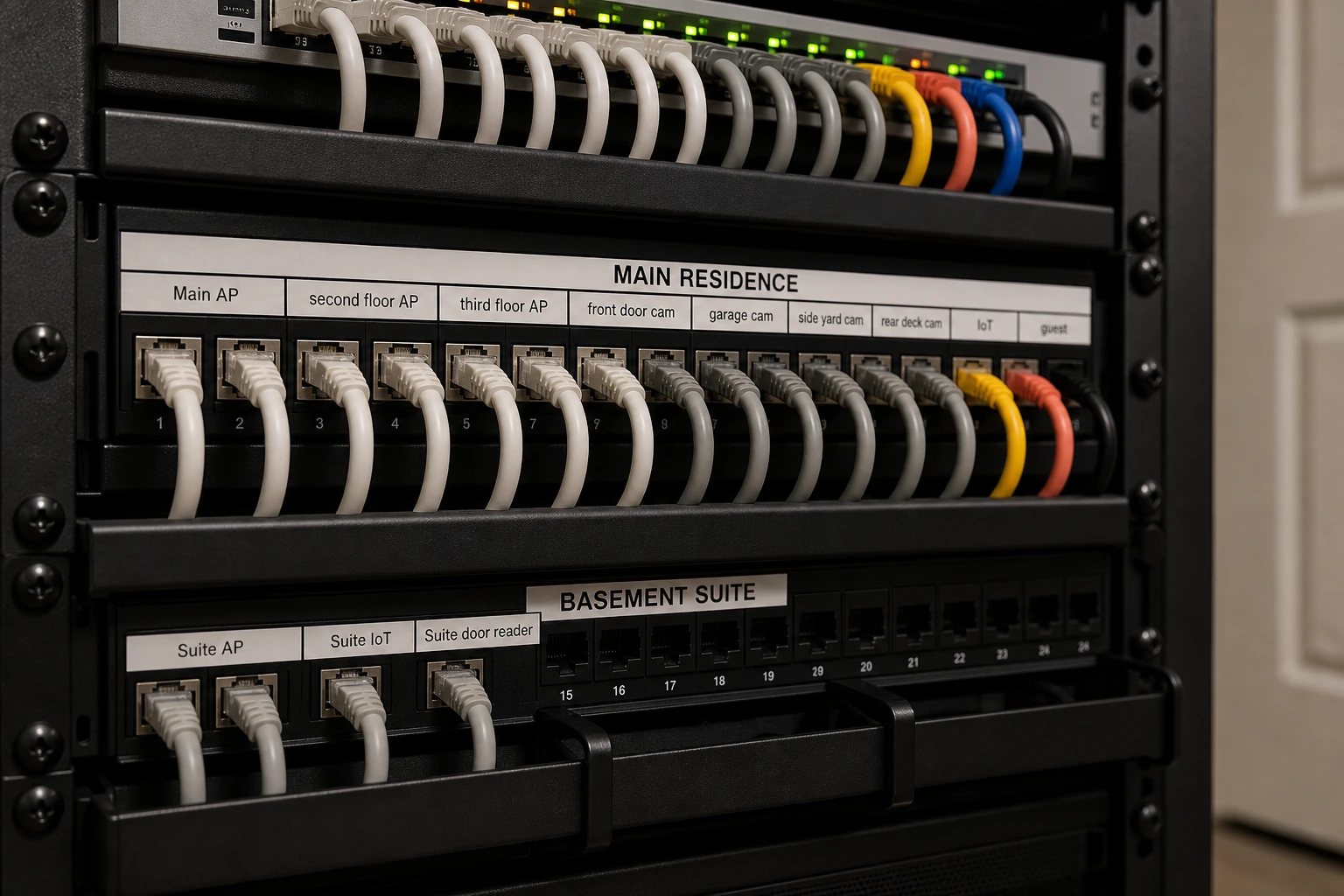
Setting up VLANs and firewall rules on UniFi comes down to six jobs, in this order: plan which devices go where, create the new networks (each a VLAN, a separate virtual network on the same cables and Wi-Fi), give each one its own Wi-Fi name, write firewall rules that block traffic between them by default, switch on the security tools, then move every gadget across and test. You need a UniFi gateway on Network 9.0 or newer, and the testing takes the most effort.
What you need first
A UniFi gateway or Cloud Gateway running UniFi Network 9.0 or newer, admin access to it, a list of your devices, and time at home to rejoin every smart gadget afterwards.
How much work it is
For someone new to it, the first attempt is slow. Creating the networks goes quickly. Finding why the TV stopped casting, and rejoining each gadget to new Wi-Fi, takes most of the work.
What breaks most often
Casting and device discovery. AirPlay, Chromecast and Sonos stop finding each other once phones and speakers sit on different networks, unless the gateway relays discovery and the firewall lets the replies through.
Have it done remotely
We do the whole job remotely for $299 + HST. If you bought your UniFi from SetupTeam and are no longer on a support plan, it’s $149.99 + HST. It’s included with a SetupTeam 1-year support plan. See the service.
What does a well-set-up UniFi home network look like?
A well-set-up UniFi home has at least three networks: Main for the phones and laptops you trust, a smart-device network for TVs, plugs and thermostats, and a Guest network that reaches only the internet. Each one is its own VLAN, a separate virtual network sharing the same cables and access points, and the firewall decides what may cross between them.
The smart-device network is often called IoT, short for Internet of Things, the catch-all name for gadgets that connect to the internet. Many get few security updates, and in 2025 the FBI warned that some cheap streaming boxes ship with malware already installed. On their own network, a compromised gadget can still reach the internet, but it cannot start a connection to your laptop.
Main stays where it is. If your phones and laptops already work, there is no reason to renumber them; the new networks are added around it.
Two more networks are optional. A tenant network gives a basement suite its own internet with no view of the main house. A camera network for UniFi Protect keeps cameras off the internet and lets only Main view them.
The VLAN ID tip
Make each VLAN ID match the third number of that network’s address. VLAN 20 gets 192.168.20.x, VLAN 30 gets 192.168.30.x. When a device shows up with a .20 address in the app, you know which network it is on without looking anything up.
| Network | What goes on it | What it can reach |
|---|---|---|
| Main | Phones, laptops, tablets, computers, Sonos speakers | Everything: the internet, smart devices, cameras and the gateway |
| Smart devices (IoT) | Smart TVs, streaming boxes, plugs, bulbs, thermostats, doorbells | The internet and the gateway’s basic services; it answers Main and sends AirPlay’s timing signal, but otherwise never starts a connection to it |
| Guest | Visitors’ phones and laptops | The internet only; guests can’t reach each other or your devices, apart from what casting needs |
| Tenants (optional) | A basement suite’s phones, laptops and TVs | The internet only |
| Cameras (optional) | UniFi Protect cameras | The console that records them; Main can view them; no internet |
How do you set up VLANs on UniFi for smart devices?
You set up a UniFi IoT VLAN in five steps, and the order matters: plan which devices move, create the network with its VLAN ID, give it its own Wi-Fi name, move any wired ports, then rejoin the gadgets one at a time. Change things in a different order and devices end up with no network to join.
- Plan. List every device and decide where it goes. TVs, streaming boxes, plugs and thermostats go to IoT. Sonos stays on Main (the casting section explains why). Note which devices are wired and which switch port each one uses.
- Create the networks. In UniFi Network, go to Settings > Networks and create a new virtual network. Give it a name, a VLAN ID and a matching address range, and keep DHCP on (DHCP is the service that hands each device its address). Put the network in its own firewall zone. Guest suits shorter address leases, since its devices come and go.
- Create a Wi-Fi name for each network. Each Wi-Fi network maps to one VLAN. IoT gets its own name and password, with settings older gadgets accept (see the Wi-Fi section below).
- Move wired ports. Change the network on the switch ports that feed wired TVs, streamers and hubs. Leave the port your computer uses, and the gateway’s own uplink, until last or alone, so you don’t cut off your own access halfway through.
- Rejoin the gadgets. Each Wi-Fi device has to be given the new network name and password, usually through its own app. Some need a factory reset first. Check each one from your phone before you move to the next.
Ubiquiti also has a shortcut called VLAN Magic that moves chosen devices into a new network from the topology view. For a whole house, a Wi-Fi name per network is easier to keep track of.
If the UniFi app itself is new to you, start with our UniFi app guide.
Which firewall rules does an IoT VLAN need?
An IoT VLAN needs a firewall that blocks it from your Main network by default and then allows five things: internet access, the gateway services every device needs (DNS, DHCP and time), connections that Main starts towards IoT, the replies to those connections, and the small timing signal AirPlay sends back to your phone. Everything else stays blocked.
Can you put a firewall on a VLAN?
Yes. A UniFi gateway filters traffic between every network it routes. Since UniFi Network 9.0 the firewall works in zones. A zone is a group of networks that share the same rules, and you write policies from one zone to another. Main sits in the built-in Internal zone. Give IoT and Guest a custom zone each, block everything from it to every other zone, then add the exceptions. The Zone Matrix shows the result as a grid of source and destination zones.
Main starts, IoT only replies
Main may open connections to IoT with return traffic allowed, so your phone still controls the TV. IoT may not open a connection to Main, apart from AirPlay’s timing signal, so a hacked plug can reach the internet but can’t go looking for your laptop. Zones filter each direction separately, so check both.
Rule order, and the gateway trap
Custom policies sit above Ubiquiti’s built-in ones, and you can reorder them. Put specific allows above a broad block, or the block catches the traffic first. The classic lockout is blocking IoT from the Gateway zone without first allowing DNS and DHCP: devices can’t get an address or find any website, and the whole IoT network looks dead.
Where are the firewall rules in UniFi?
In Network 9.4, Ubiquiti put them under Settings > Zones and Settings > Policy Table, though menus move between releases.
Legacy firewall or zone-based?
Consoles set up before Network 9 may still run the older (legacy) firewall. The upgrade button is under Security > Traffic & Firewall Rules. Ubiquiti says it takes seconds and traffic keeps flowing, but it converts old rules conservatively, which can leave many redundant policies. Test, then remove the ones that do nothing before adding new rules.
Rather have the rules built for you?
We build the networks, zones and firewall policies remotely, save a backup of your current settings before we change anything, and test casting and control before we finish. $299 + HST.
How do you keep AirPlay, Chromecast, Sonos and HomeKit working across VLANs?
Turn on the gateway’s mDNS relay for Main and IoT, allow Main to reach IoT, and keep Sonos on Main. mDNS is the background announcement phones use to find TVs and speakers, and it never crosses between networks unless the gateway repeats it. With the relay on, your iPhone sees the Apple TV and an Android phone sees the Chromecast.
In UniFi this is the gateway’s mDNS proxy, and you can limit it to the networks that need it. Our standard relays Main, IoT and Guest, and leaves tenant and camera networks out.
Why Sonos stays on Main
Sonos supports one network for its app and speakers. Split them across VLANs and the app can lose track of speakers, so every Sonos product goes on Main with the phones that control it.
Letting guests cast
Guest isolation stops visitors seeing your devices, which also stops them casting to your TV or Sonos. You can allow casting with a short list of exceptions from Guest to the network the TV sits on. It’s a trade-off: each exception opens a little more of your network to guests, so open only what your household uses.
HomeKit, Matter and Thread
HomeKit accessories and home hubs announce themselves over mDNS too, so the relay helps them. Matter and Thread devices run over IPv6 and depend on discovery working cleanly, and not every hub handles a split network well. If your home relies on Matter, move those devices last and test each one. If a device won’t pair or keeps going unresponsive, keep it on the same network as its hub.
Which UniFi Wi-Fi settings matter for smart devices and speed?
Two Wi-Fi networks need different settings: the IoT Wi-Fi is tuned for older, fussier gadgets, and the main Wi-Fi is tuned for speed and roaming between access points. Get the first wrong and plugs refuse to join. Get the second wrong and phones hold on to a distant access point at low speed.
IoT Wi-Fi
Run it on 2.4 GHz only, with WPA2 security and protected management frames (PMF) turned off. Many plugs, bulbs and older cameras can’t join 5 GHz or WPA3, and some fail when PMF is required. Leave fast roaming and BSS transition off here as well. The catch is that a Wi-Fi TV on IoT is limited to 2.4 GHz, which is slow for 4K streaming. Wire the TV if you can, put it on Main, or add a second 5 GHz Wi-Fi name on the IoT network for TVs and streamers.
Main Wi-Fi
Main runs on every band your access points support, with WPA2/WPA3. Band steering moves dual-band devices onto 5 GHz. A minimum data rate stops a phone clinging to a far-off access point at a crawl, which slows every device on that access point. Fast roaming (802.11r) helps phones move between access points, but Sonos and some older devices struggle with it, so our standard leaves it off on Main and keeps band steering and the 802.11v roaming hints on.
Channel width
In a condo tower or a crowded street, narrower channels hold up better: 20 MHz on 2.4 GHz and 40 MHz on 5 GHz leave room for the neighbours’ networks. 6 GHz is quiet enough for 160 MHz.
Is channel optimization good, and why is Wi-Fi slow?
UniFi’s automatic channel optimization is a sound starting point. It can’t fix the usual causes of slow UniFi Wi-Fi: too few access points or poor placement, channels set too wide, devices stuck on 2.4 GHz, wireless mesh where a cable belongs, or a slow internet plan. On smaller gateways, intrusion prevention also lowers the top speed the gateway can route.
Which built-in security features should you switch on?
Switch on intrusion prevention, a security-focused DNS service, a decoy honeypot, device identification and rogue DHCP detection, keep everything updated, and protect your UniFi account with two-step sign-in. All of these come with a UniFi gateway at no extra cost. Ubiquiti’s paid CyberSecure subscription is optional and not required for a well-protected home.
- Intrusion prevention: watches traffic for known attack patterns. Set it to notify and block, on every network. It recognises known threats only, so a brand-new attack can still get through.
- Security-focused DNS: DNS is the internet’s address book. Point the gateway at a security-focused DNS service that blocks known malware and scam sites, with the lookups encrypted. It covers every device that uses your network’s address book, including TVs and cameras you can’t install antivirus on.
- Decoy honeypot: a fake address on Main and on IoT that nothing should ever touch. If something on your network scans it, you get an alert.
- Device identification: labels each device by type, so an unknown one stands out in the app.
- Rogue DHCP detection: warns you if another device starts handing out addresses, often a second router plugged in by mistake.
- Updates: bring UniFi OS, the Network application and device firmware up to date, then schedule automatic updates for a quiet time of the week.
- Two-step sign-in: turn it on for your UniFi account, since that account can reach your console from anywhere.
Leave region blocking off unless you need it. Blocking whole countries breaks video calls and apps for families with relatives abroad.
None of these features stops a phishing email or a password typed into a fake site. Network segmentation limits how far an infected device can spread, but it doesn’t clean a device that is already infected.
Should you set up your UniFi network yourself or have it done remotely?
Do it yourself if you enjoy the work and can live with a few things breaking while you learn. Have it done if the household depends on the network and you want it working on the first day. The steps are the same either way. What changes is who finds the problems and fixes them.
What goes wrong in DIY setups
- Gadgets drop off when their Wi-Fi name changes, and some only rejoin after a factory reset.
- Casting breaks because the mDNS relay is off or the firewall drops the replies.
- You lock yourself out by moving the switch port you’re connected through, or by blocking the Gateway zone.
- Old rules stay behind after the legacy firewall upgrade and quietly override the new ones.
- Wi-Fi TVs end up stuck on 2.4 GHz on the IoT network.
The remote service
We work through your UniFi console: you invite us as an administrator in UniFi Site Manager, or we work over a screen-share. We read your current setup and save a backup of your settings before we change anything. Your Main network stays as it is. We add the smart-device and Guest networks, firewall rules, security features, updates and Wi-Fi tuning, and we test before we finish. If you also want a tenant or camera network, ask us.
- $299 + HST, one time, for UniFi gear bought elsewhere
- $149.99 + HST if you bought your UniFi from SetupTeam and are no longer on a support plan
- Included for customers on our 1-year support plan
Details and booking are on the UniFi network security service page.
What it can’t do
It needs working internet and a UniFi gateway running the UniFi Network application. If the internet or the console is down, there is nothing to log in to, and that becomes a UniFi troubleshooting job. If your Wi-Fi comes from an internet provider’s router, it can’t be done remotely; start with a UniFi installation.
For why this matters now, from AI voice-clone scams to Canada’s record fraud losses in 2025, read our home cybersecurity guide.
Frequently Asked Questions
7 answersSplit it into Main, smart-device and Guest networks, set the firewall to block between them by default, run gadgets on 2.4 GHz, use narrower channels in busy buildings, switch on intrusion prevention and security-focused DNS, and keep firmware updated.
Create a new virtual network under Settings > Networks with its own VLAN ID, add a 2.4 GHz Wi-Fi name using WPA2, put the network in its own firewall zone that can’t start connections to Main apart from AirPlay’s timing signal, then rejoin each gadget.
Yes. A UniFi gateway filters traffic between every network it routes. Since Network 9.0 you group networks into zones and write policies between them, so an IoT VLAN can reach the internet but can’t start connections to your Main network, apart from AirPlay’s timing signal.
In Network 9.4 they sit under Settings, in Zones and the Policy Table. Consoles still on the legacy firewall show Security > Traffic & Firewall Rules, with an Upgrade button for zone-based rules. Menu names can change between releases.
Yes, as a starting point. It chooses channels based on what your access points detect around them. It won’t fix poor access point placement, channels set too wide for a crowded building, or devices stuck on 2.4 GHz.
Common causes are channels set too wide for nearby networks, devices stuck on 2.4 GHz, too few access points, wireless mesh where a cable belongs, or intrusion prevention capping a smaller gateway. Test a wired connection first to rule out your internet plan.
$299 + HST, one time, if your UniFi gear came from elsewhere. If you bought it from SetupTeam and are no longer on a support plan, it’s $149.99 + HST. It’s included with a SetupTeam 1-year support plan.
Get your UniFi network
set up properly
Keep your gear and your main network. We add separate networks for smart devices and guests, firewall rules, security features and Wi-Fi tuning, all remotely, for $299 + HST. Call (647) 464-0606 or email us to book.

